EduClock Open the app

How-to guide

Not an app forplaying alone.

EduClock has no characters that praise a tap, no levels to clear, no stamps to collect. The screen is deliberately plain — because in its place, the voice of the grown-up sitting beside your child is the very best teaching material.

This guide is written to be a little script for those parent-and-child moments. You don't need to do all seven steps at once — think of it as a gentle journey to find the step that fits your child's "right now."
INDEX — The 7 steps

  1. 01 Start with "it's there" and "it's round."
  2. 02 Just follow the "short hand."
  3. 03 Sector → Detailed: move up a step.
  4. 04 Auto rotation — a day in 24 seconds.
  5. 05 The same 7 o'clock — totally different inside.
  6. 06 Merge for a normal clock. Split to see inside.
  7. 07 Random: ask the question, give the answer.
01 From age 1 / Getting used to its presence

Start with "it's there" and "it's round."

Setup Clean × Badge × Crisp Colors

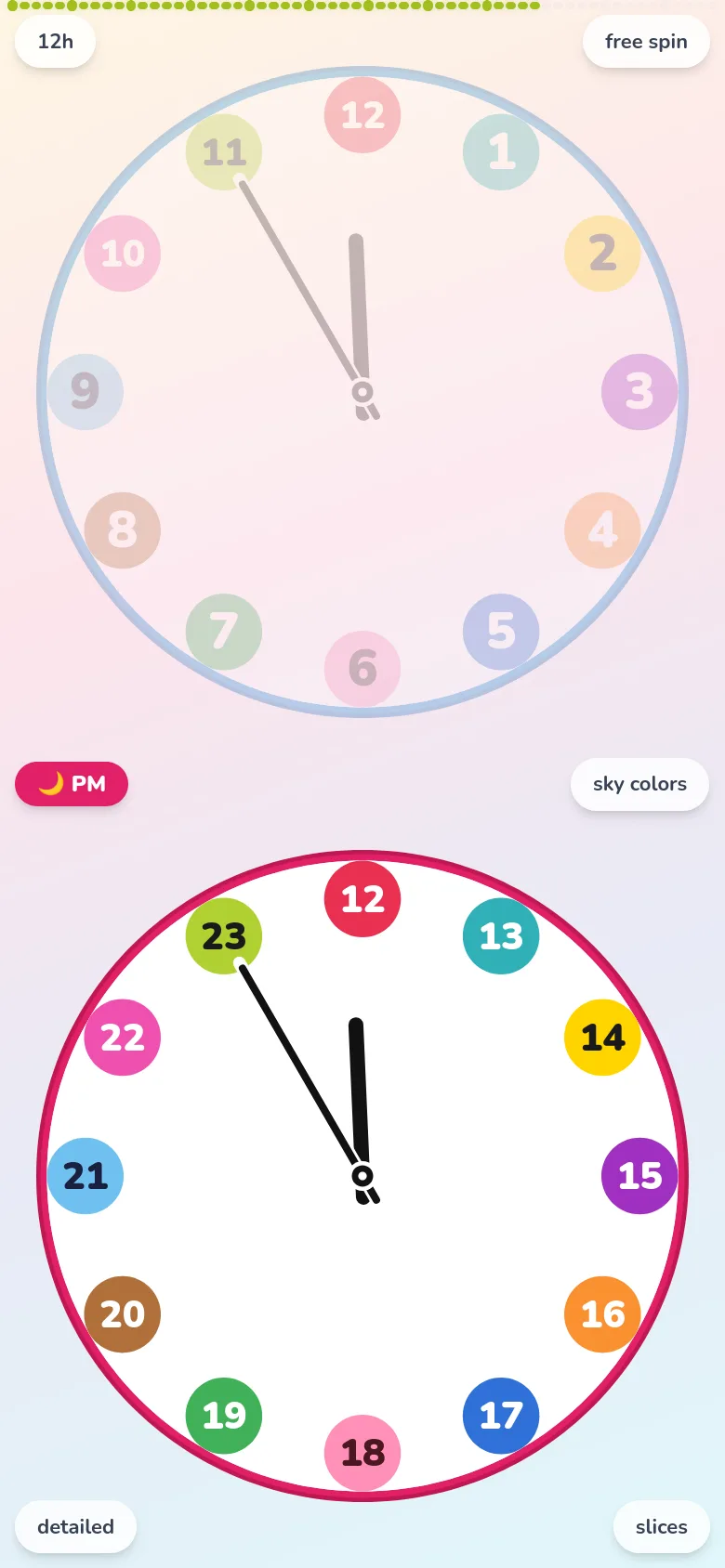
EduClock opened in its minimum layout: outer minute numbers hidden, large colored badges arranged 1–12 with PM 13–23 underneath.
Hide the outer minute numbers — just the badges. Cut the information right down.

Hide the outer minute numbers so only the numbers inside the face remain — the absolute minimum-information version. Don't cram things in at the start. That's the single most important rule for using this app.

You don't need to teach "what time is it?" at this stage — not at all. Something round, something colorful, something that moves slowly, just being part of the room. That's enough. It takes a child about a year even to point at a wall clock; please give that "getting used to its presence" time the space it deserves.

Sample dialogue

"Look — it's on the blue part right now."

"Blue!"

"Yes, blue."

A note: Let the grown-up speak first. Don't correct answers. You don't need them to get it "right" yet.

02 Ages 2–3 / Reading "about"

Just follow the "short hand."

Setup Clean × Badge (focus on the hour hand's color)

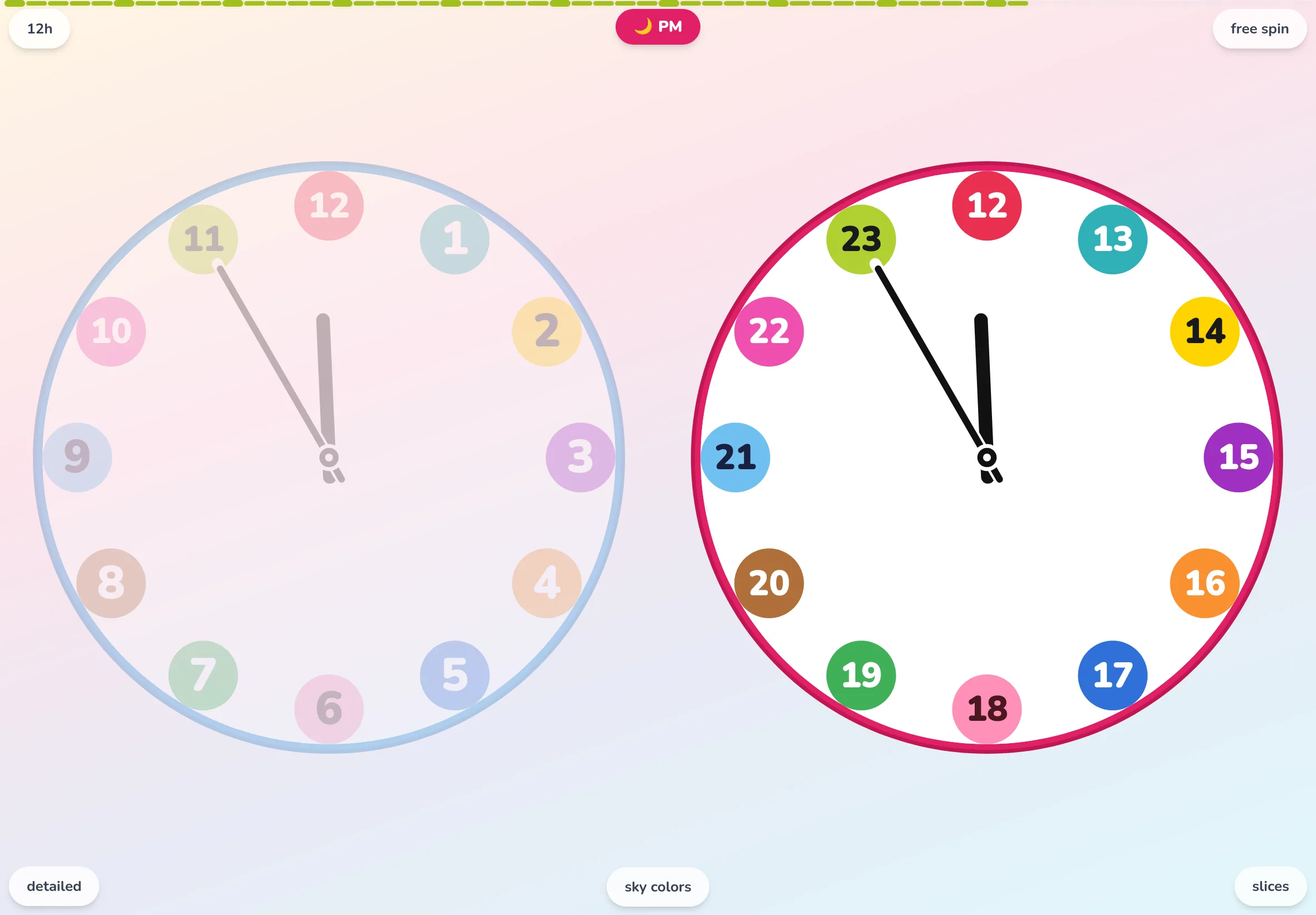
EduClock on a tablet in minimal layout: colored badges 1–12 and 13–23 side by side, so the time is clear from which color the short hand points at.
Which color badge is the short hand pointing at? That's the only thing to look at.

Grown-ups like to think they read the hour and minute hands at the same time, but really we grab the "roughly what hour" from the hour hand first and fill in the minutes afterwards. The hour hand is always first.

Same for children. Only talk about the color the short hand is on, and the number nearest it. Don't aim for "exact" — aim for "about." Even as grown-ups, whether we make it to things on time mostly comes down to "about."

Sample dialogue

"The short hand — what color is it on?"

"Yellow!"

"Yellow is… the 2 spot. So it's about 2 o'clock right now."

A note: Getting them to say the color is faster than having them trace the numbers. Once they can answer by color, the next step is to add "which color is which hour."

03 Ages 4–5 / Reading properly

Sector → Detailed: move up a step.

Setup Sector, then Detailed

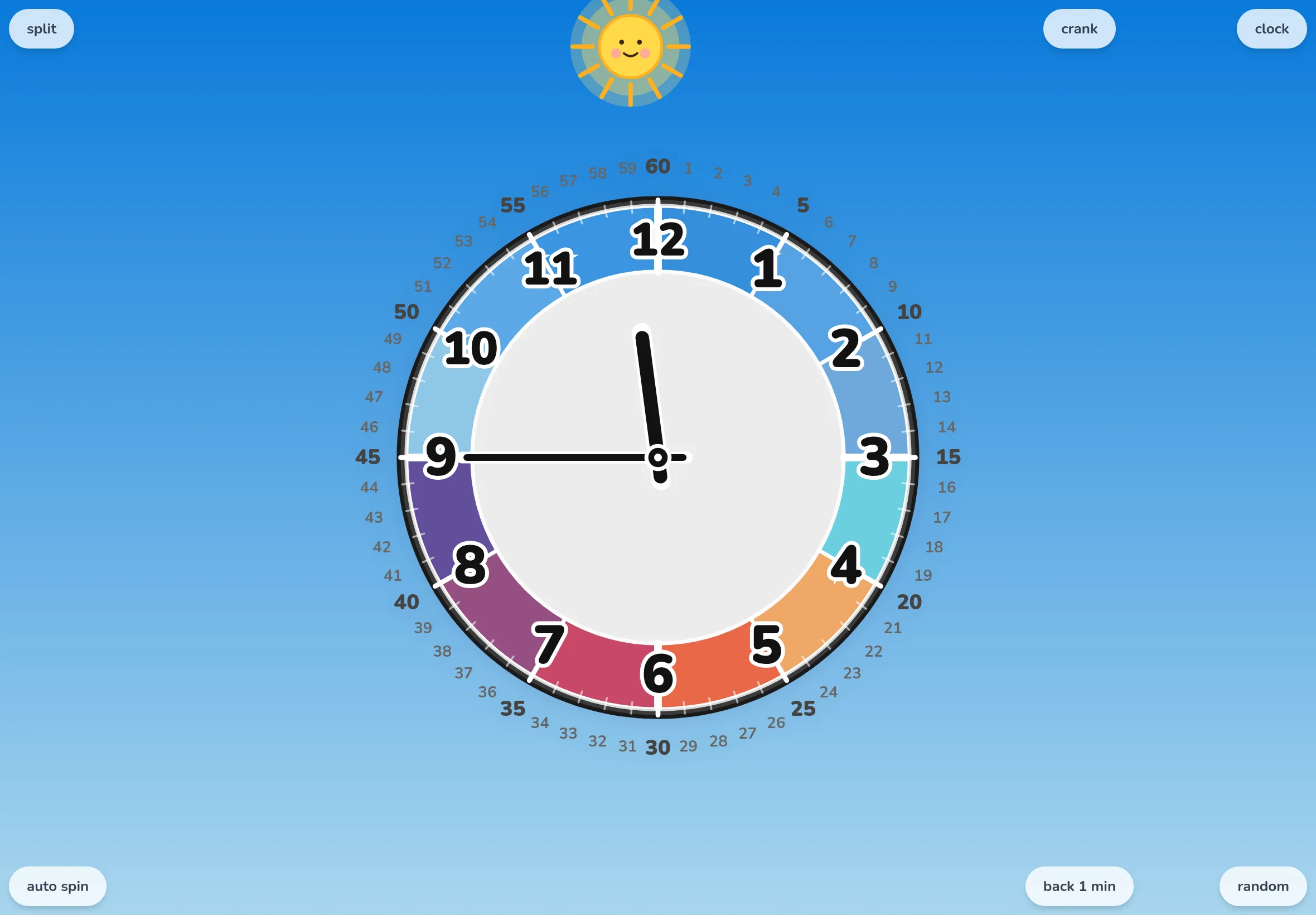
EduClock in Detailed mode: minute numbers 1–60 line the outer ring, so it's clear how far the long hand reaches.
Minute numbers 1–60 appear on the outer ring — you can see exactly how far the long hand has reached.

Once your child is comfortable with the clock's presence and its colors through "Clean" mode, move to "Sector." The boundaries between hours appear as lines, and a single "hour" shows up visually as a block. It barely looks different to an adult, but to a child, this is a big leap — one tick mark suddenly has meaning.

Once you're there, finally switch to "Detailed." The minute numbers from 1 to 60 appear around the outside, and the minute scale shows itself. This is the one line you want to get across:

「The short hand points to the nearest number. The long hand is long — so it reaches far.」

The hour hand and the minute hand, doing exactly what their names say. The moment this sentence clicks, a child's eyes go wide and they say "oh, I get it." That's when learning to read the clock really begins.

Sample dialogue

"The long hand — which number is it on?"

"…30!"

"Right. And the short one is just past 9. So it's 9:30."

A note: For minutes, counting by 5s is the shortcut at first. Point and chant together — 5, 10, 15… — and they usually ride the 10s pretty quickly.

04 Any age / Feel time flowing

Auto rotation — a day in 24 seconds.

Setup Auto rotation ON (works in any mode)

Auto rotation in action. A day flows by in about 24 seconds, and the sun, moon, and sky shift from dawn to midday, sunset, and night.

A normal clock is technically moving, but to a child it might as well be frozen. "Auto rotation" compresses a whole day into about 24 seconds and spins the hands. The background flows along with it — dawn → midday → sunset → night sky.

The one moment you absolutely don't want to miss: the sun, rising slowly from the lower-left of the clock face. "Look — the sun's coming up!" With those words, the invisible thing called "the flow of time" finally takes on a visible shape.

A little story

"When the short hand passes 18, the moon comes out." Remember one small prediction like that and evening clock-time suddenly becomes "the next chapter of the story."

Sample dialogue

"The sun — which side did it come up from?"

"This side!"

"Right, from below the sky. …And which way is it moving?"

"That way!"

"That's the clock's direction. It's called clockwise."

A note: This mode also makes it clear that "a clock never runs backwards." You try to turn it back, and it won't — just like time.

05 Around age 5 / Morning and afternoon

The same 7 o'clock — totally different inside.

Setup Long-press AM / PM to preview

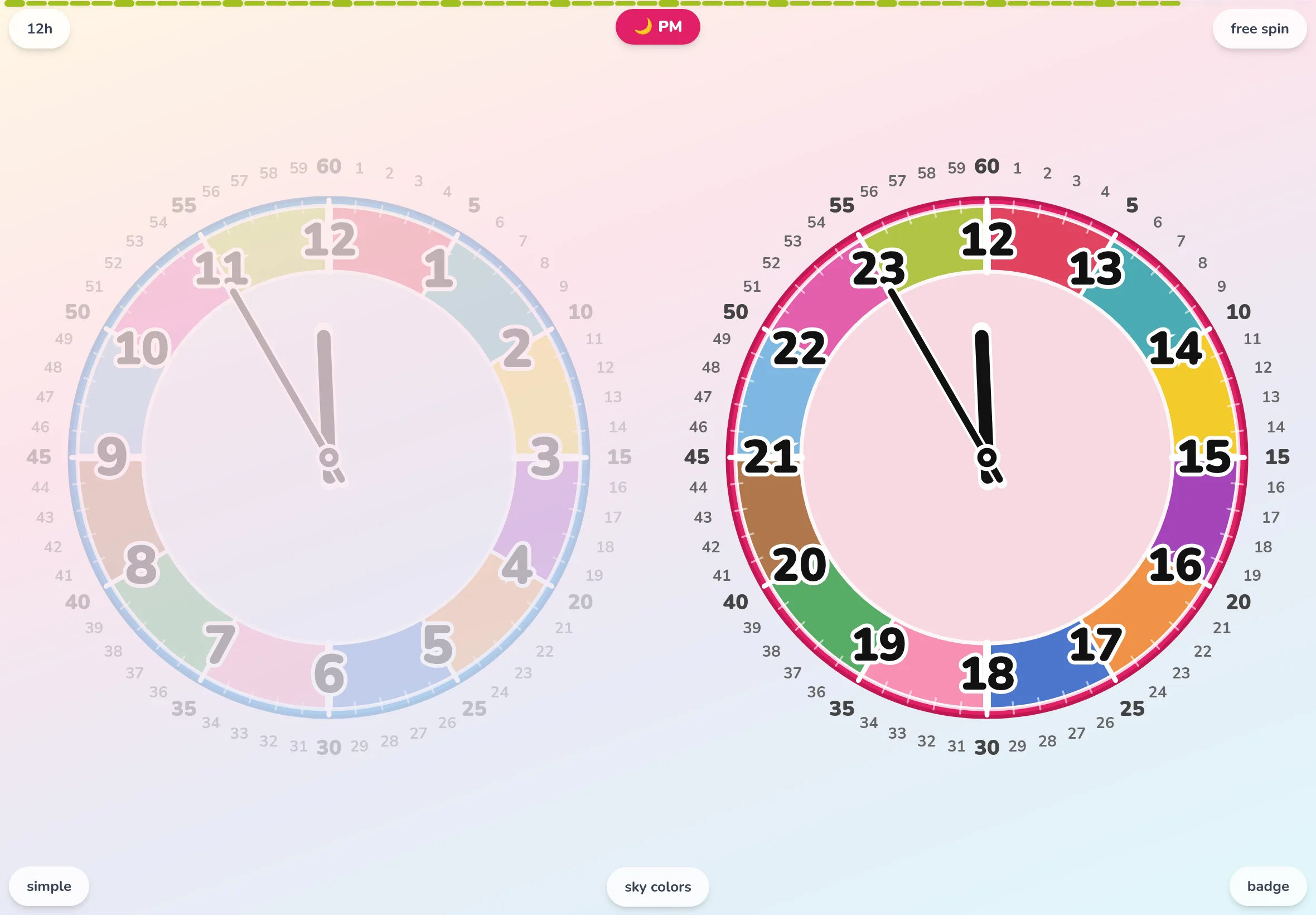
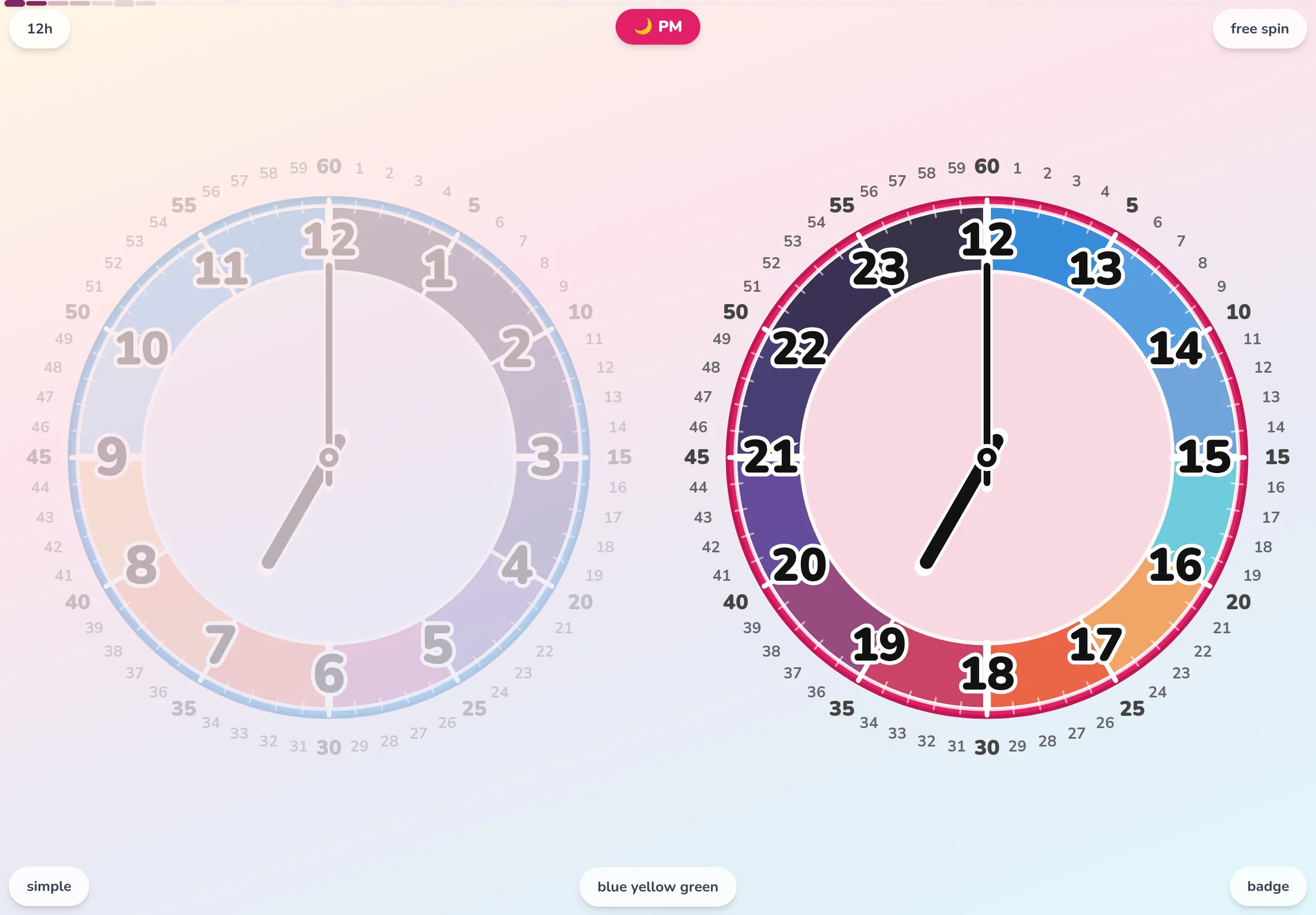
EduClock with the Sky Colors palette at PM 19:00: the right-hand PM face glows in evening purples, while the left-hand AM face fades quietly.
7 PM in the Sky Colors palette is a twilight purple. Same "7 o'clock," but the color and the light outside are nothing like the morning's.

Long-press the AM or PM badge and morning and afternoon flip places.

7 in the morning, and 7 in the evening. The same number "7," but the light outside, the color of the sky, what the family is doing — all of it is different. 7 o'clock wasn't just one thing.

For grown-ups, "the same number shows up twice" is so obvious we can't even think of how to explain it. For children, it's a discovery. The long-press flipping the scene is a better teacher than any explanation.

Sample dialogue

"It's 7 in the morning right now. What do we usually do?"

"Brush teeth!"

"So what about the other 7 o'clock?"

"…night?"

"Yes, 7 at night. Around after dinner."

A note: Tying times to daily events is the fastest way in. Pair color and event: "breakfast is blue," "dinner is pink."

06 Ages 5–6 / The secret of 24 hours

Merge for a normal clock. Split to see inside.

Setup Free rotation × Merge / Split

Tapping "merge / split" in the top-left a few times. The two faces fold together into one, then pop open again.

Enter free-rotation mode and two new buttons appear: "merge" and "split."

Tap "merge" and AM and PM overlap onto a single face — the same shape as the regular analog clock hanging on the wall downtown.

Tap "split" and morning and afternoon separate into two faces again.

Flip between the two a few times and what regular clocks have been quietly doing all along finally becomes visible.

「A normal clock is 24 hours folded onto a 12-hour face.」

That "fold" was just invisible to children the whole time. Once they can see it, the clocks around town stop being strange, too.

Sample dialogue

"What happens when you press merge?"

"It got small!"

"Right — that's the same shape as the clock at home. And when you split it, look, it opens up like this."

A note: "An analog clock is a shortened 24-hour clock" — and here you can show it through an action, not through a lecture. This is something only EduClock can really demonstrate.

07 Ages 6–7 / Wrapping up with a quiz

Random: ask the question, give the answer.

Setup Free rotation × Random

EduClock in Sky Colors × Merge mode, right after pressing random — only the hands have moved smoothly to a new time.
Sky Colors × Merge, one press of "random." The hands glide softly to a different time.

"Random" picks a random time on the 15-minute grid from "waking hours" — 6 AM to 9 PM. Only the hands move; the numbers for the time aren't shown.

The parent asks "what time is it?" The child answers. That's the whole game.

Right answer, wrong answer — either is fine. "They said the color." "They got the rough hour." "They got it exactly." Whichever level they reach, you can clearly see where your child is right now.

Swap roles — it gets even better

Letting the parent be the one to answer is secretly a great idea. Say, with a straight face, "ummm… 4:15?" and they'll triumphantly correct you: "No! It's 3:15!" After that, the clock stays on your side for a good long while.

Sample dialogue

"OK, question 1. What time is it?"

"Just past red, long hand on 15… 1:15!"

"Correct! Now question 2. This one's tricky, though."

A note: Always say "so close!" out loud when they miss. Then quietly remind them of the answer, through the color, before the next question.

Three tips
that always apply.

1. Don't push it.

A child doesn't learn to read a clock in a day or two. But somewhere in the next five years, they will — guaranteed. When grown-ups rush, it only takes the long way around. "Today isn't the day, that's all" — wrap it up cheerfully, and you'll be fine.

2. Use it as a daily signal.

"Leaving at blue." "Toothbrush time at pink." Tie the colors to the turning points of daily life, and the app quietly becomes not a study tool, but part of the rhythm of the home.

3. Turn a tablet into "the clock."

Add it as a PWA and it launches fullscreen. Got an old tablet lying around? Prop it up and you have a colored wall clock, done. "Having a colored clock in the house" beats "practicing reading the clock" every time.

Sit next to them
and open it together.

For the first step, "the blue one" from Step 01 is plenty.

Open EduClock →

← Back to the home page