EduClock
Open the app

Clock app for kids / Free, no sign-up

Learn timethrough color.

EduClock is a free clock app for kids that shows the time with a ring of 12 differently colored hour sectors. Even toddlers who can't read numbers yet understand when you say "it's the blue one now." It's also a movable analog clock — spin the hands with a fingertip, right from the browser, with no install and no sign-up.

No sign-up Works offline (PWA) No ads
12123456789101160510152025303540455055

↑ A real, live preview — ticking at this very moment.

Ready to answer "what time is it?"

An analog clock asks a child to juggle two abstractions at once: the position of the hands and the meaning of the numbers. EduClock removes that barrier by giving each hour its own color, turning the clock face into an intuitive color = time cue. It's a new kind of kids' clock app, where children learn time by color — long before they learn numbers.

FEATURE 01

Every hour,
a different color.

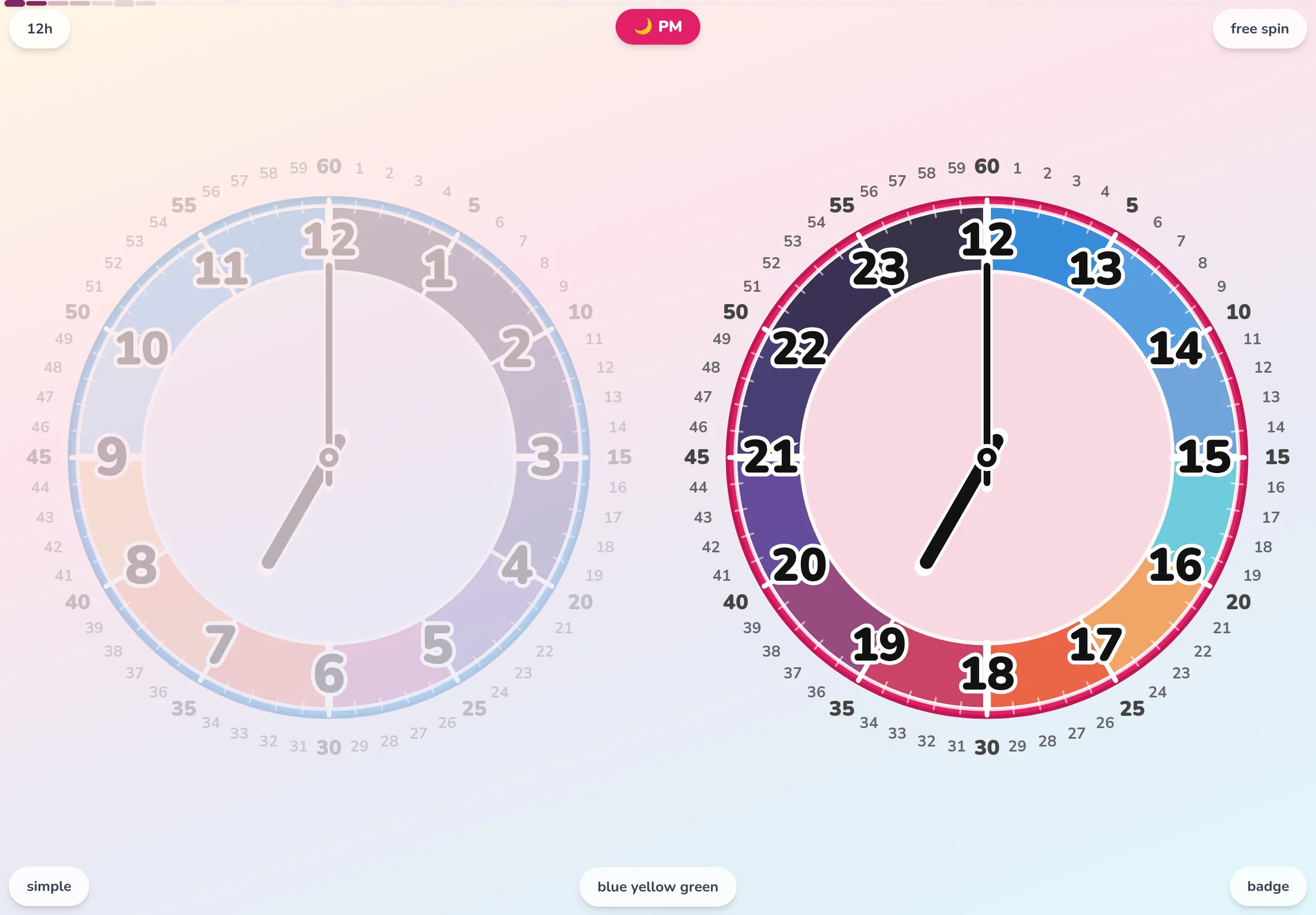
The default "Crisp Colors" palette is a carefully tuned categorical scheme that jumps warmth, hue, and brightness so that neighboring hours stay as distinct as possible. Before your child can read any numbers, the position of a color tells them "where we are right now."

  • Color-vision friendly — avoids placing red and green side by side
  • Text colors are paired for guaranteed contrast
  • Outer minute numbers support finer reading too
The EduClock learning clock app on a tablet: an analog clock face whose 12 hours are each painted a different color as sector rings.
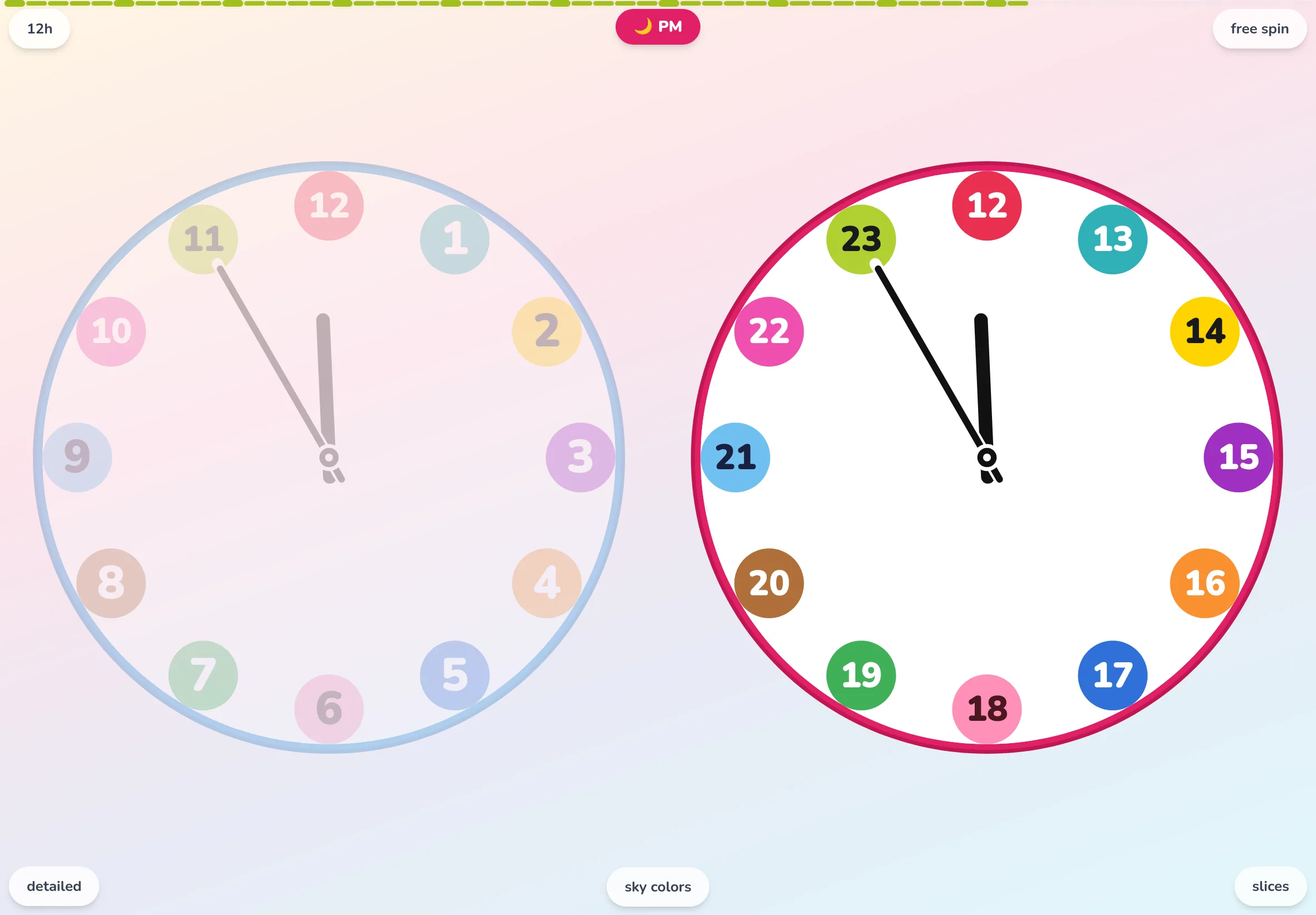
Side-by-side AM/PM view in EduClock: a 24-hour analog clock with morning on the left and afternoon on the right.
FEATURE 02

AM and PM,
24 hours side by side.

Morning and afternoon are shown together, left-and-right (or top-and-bottom), all the time. The layout itself teaches the key idea that the same "3 o'clock" feels different by day and by night. The current half glows brightly; the other half fades quietly into the background.

Modes Sector / Badge
FEATURE 03

A movable
analog clock, in the browser.

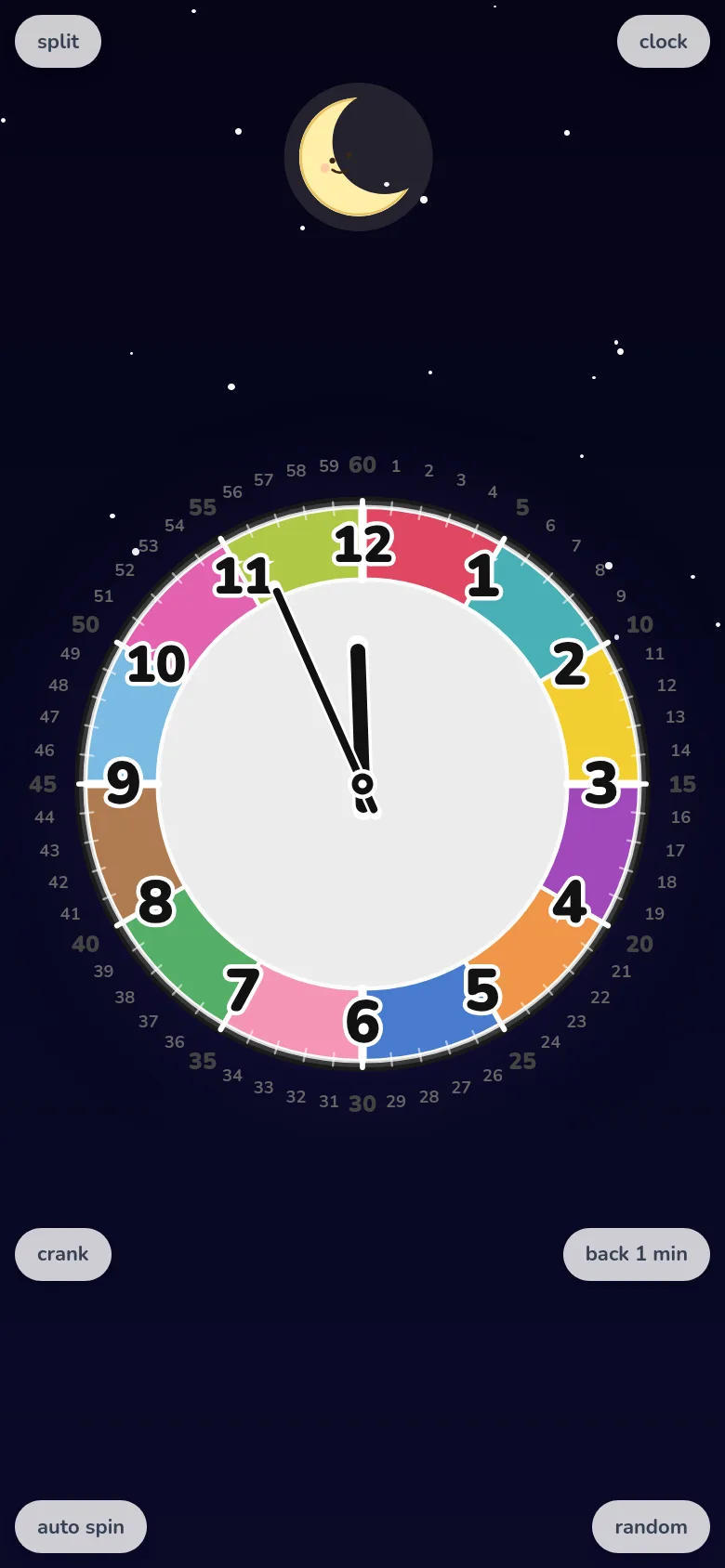
In "Free Rotation" mode you can spin the hands of a web analog clock with your finger. On a PC, on a phone — set the time however you like. "Dinner's at 7 — what color are we on now?" Perfect fuel for little parent-and-child conversations.

Auto rotation: one day in ~24 seconds. The sky shifts from dawn to midday, sunset, and night.
A phone showing a child practicing telling time in EduClock's free-rotation mode.

Easy one-handed spinning on a phone

🎡

Crank / Drag

Turn it like a real clock, or drag intuitively by distance. Switch whenever you like.

🎲

Random

Picks a random time on the 15-minute grid, during waking hours. Great for reading practice.

☀️

Auto rotation

A day in 24 seconds. Feel time flow through the changing color of the sky.

DESIGN PRINCIPLE

A clock never runs backwards.

Free-rotation mode intentionally refuses to spin in reverse. The hands only move forward — just like a real clock. If you truly need to go back, the "back 1 min" button steps you back one minute at a time. The operation itself whispers what we care about most as a learning app: time only moves forward.

FEATURE 04

Six palettes,
one tap away.

Pick a palette to match the goal, the age, or how your child sees color. There's also "For Everyone," designed with color-vision diversity in mind. Try the buttons.

121234567891011

Crisp Colors

A different color for each of the 12 hours — the classic way for children to learn time through color.

* This is the default palette when the app opens.

Little things,
thoughtfully made.

📱

PWA-ready

Add it to your home screen for fullscreen, offline use. Turn a tablet into a wall clock, as is.

↔️

Portrait & landscape

Detects device orientation and flips the AM/PM layout accordingly — fully responsive.

🔒

100% on-device

Settings live only in your device's localStorage. Zero data sent out, no tracking.

⏱️

Second bar

A slim bar along the top edge shows seconds — no extra hand needed.

👆

Tap AM / PM

Long-press a badge to flip AM and PM instantly — a kid-friendly gesture.

🎚️

Detailed / Clean

Show or hide the outer minute numbers (1–60). Adjust the information level to the child's age.

Perfect for moments like these.

🌅

Getting ready in the morning

"When we reach the blue one, it's time to leave." Use free-rotation to count down together: "how many colors to go?"

🌙

Announcing bedtime

With the Sky Colors palette, the current "color of the sky" shows up on the clock face. "When the sky gets dark, we brush our teeth" — now it's something you can see.

🎓

Practicing telling time

Tap "random" for a random time on the 15-minute grid. A parent reads it, the child answers from the color and hand position — a little game.

Ages & how to use it

For ages 1 to 7. Adjust the amount of information to match your child's age and understanding — a gentle learning clock app for that very first meeting with the clock.

1–2 years

Start with "about now."

For when reading a clock is still way too much. "Clean" × "Badge" mode hides the minutes for a minimum setup. Just point to a number near the hand and say "we're around 3 now" — it begins with the feeling of getting a rough idea.

3–5 years

Learn "now" through color.

Even without reading numbers, the different colors for each hour make "we're in the blue now" obvious. "Dinner is when it turns pink" / "nap time is during the green" — a learning clock that becomes the daily signal for the rhythms of family life.

5–7 years

Learn to read the clock.

Perfect for learning to tell time around the start of school. Switch to "Detailed" mode to reveal the outer 1–60 minute numbers and really practice the movements of the hour and minute hands. The "random" button turns it into a question-and-answer game.

See the full guide

Seven age-by-age steps, with sample parent-and-child dialogues

Frequently asked questions

Questions we often hear from parents about the EduClock learning clock app.

+ What age is the EduClock learning clock app for?
From about age 1. With "Clean" × "Badge" mode for the most minimal setup, you can just point to a number near the hand and say "we're around 3 now." By ages 3–5, color and time start to click together; by the start of school, when kids learn to tell time, EduClock really hits its stride. It's a learning clock app whose information level grows with the child.
+ Any tips on how to use it?
EduClock is designed as a tool for parent-and-child conversations. From a toddler's "about now" to a school-age child's "exactly now," the trick is to adjust modes — clean/detailed, badge/sector, and so on — as your child grows. We've put together a seven-step how-to guide with sample dialogues on a separate page; have a read together.

Read the how-to guide →

+ Is there a cost? Is it really free?
Completely free. No sign-up, no in-app purchases, no ads — ever. If you're searching for a free clock app for kids, you can use EduClock as-is. Just open it in a browser: no install, no hidden fees.
+ Can I use it as a browser-based movable analog clock?
Yes — EduClock is a web analog-clock app. Switch to "Free Rotation" mode and you can spin the hands with your finger or mouse on a PC browser, phone, or tablet. If you've been looking for a movable analog clock on the web, EduClock is a great fit.
+ What devices does it run on?
Anything with a modern browser — phones, tablets, and PCs all work. A recommended setup is to install it on a tablet and use it like a wall clock.
+ Does it work offline?
It's PWA-ready, so once you add it to your home screen it launches and runs offline. It'll happily serve as a kids' clock app in the car, even without signal.
+ How is it different from a regular analog clock?
Ordinary clocks tend to confuse children by layering two abstractions — the hands and the numbers. EduClock assigns a distinct color to each hour as a sector ring, giving children the intuitive cue of "which color are we in now?"
+ Is there a practice mode for telling time?
Inside "Free Rotation" mode, the "random" button picks a random time on the 15-minute grid. A parent asks, the child answers from the color and the hand position — a quiz format that makes telling-time practice feel like a game.

Starting today, the clock is on your side.

A fully free kids' clock app — no install needed. Open it in your browser and use it as a movable analog clock from day one.

Open EduClock →